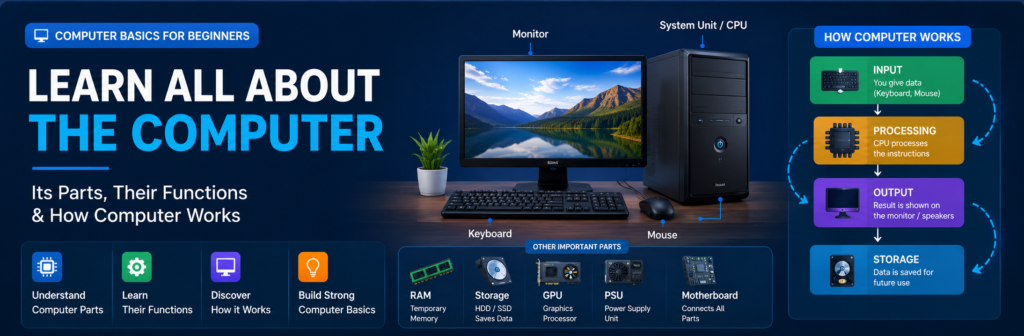
Computer Basics: Parts, Functions, Types & How a Computer Works
Computers are an important part of modern life. We use them for education, communication, business, programming, entertainment, banking, research, shopping, and many other activities. But before learning advanced computer skills, it is important to understand the basic concepts of a computer and how its different parts work together.
What you will learn?
- Computer Fundamentals & How Computers Work
- Definition of a Computer: What an electronic device does (retrieving, processing, and storing data).
- Binary / Machine Language: How computers interpret user input by translating human commands into binary code (
0s and1s).
- Main Parts & Input/Output Devices
- Differences between Input Devices (Keyboard, Mouse, Scanner) and Output Devices (Monitor/LCD, Speakers, Printer).
- Functions of individual peripherals and hardware components.
- Core Hardware Components
- CPU (Central Processing Unit): The “brain” of the computer responsible for calculations and processing.
- Motherboard: The main circuit board connecting essential components (CPU, RAM, ROM, etc.).
- RAM (Random Access Memory) vs. ROM (Read-Only Memory): Primary memory types and their operational roles.
- Software & Application Categories
- Distinction between System Software and Application Software.
- Types of Computers
- Overview of different computer categories: Supercomputers, Mainframe Computers, Minicomputers, and Microcomputers.
What Is a Computer?
A computer is an electronic device that accepts data as input, processes that data according to instructions, stores information when necessary, and produces useful results as output.
A simple way to understand this process is:
Input → Processing → Output → Storage
For example, when you type a calculation into a calculator application:
- You enter numbers using the keyboard.
- The computer receives the input.
- The processor performs the calculation.
- The result is displayed on the screen.
- The information may be stored if you save it.
Computers can perform millions or billions of operations extremely quickly, depending on their hardware and software.
How Does a Computer Work?
At a basic level, a computer works by receiving instructions and data, processing them, and producing a result.
Suppose you open a web browser and search for something.
Step 1: Input
You type your search query using the keyboard.
Step 2: Processing
The operating system and applications process your actions, while the CPU performs the necessary instructions.
Step 3: Communication
The computer uses its network hardware and software to communicate with the internet.
Step 4: Output
The requested information is displayed on your monitor.
Step 5: Storage
Some information may be temporarily stored in memory or permanently stored on a storage device.
This process happens extremely quickly, often within fractions of a second.
How Does a Computer Understand Instructions?
Humans communicate using languages such as English, Urdu, Sindhi, and many others. Computers ultimately process instructions as machine-readable data represented at the lowest level using binary digits.
Binary uses two values:
0 and 1
These two states are fundamental to digital computing. Complex programs, images, videos, documents, and other information are represented internally using combinations of binary data.
However, programmers normally do not write large applications directly in binary. Instead, they use programming languages such as HTML, CSS, JavaScript, Python, Java, C++, and many others.
Main Parts of a Computer
A computer system contains many hardware components. Some are internal components, while others are external devices.
The most common components include:
| Component | Main Function |
|---|---|
| CPU | Processes instructions |
| Motherboard | Connects major components |
| RAM | Temporarily stores data used by active programs |
| Storage | Permanently stores files and software |
| Monitor | Displays visual output |
| Keyboard | Enters text and commands |
| Mouse | Controls the pointer |
| Speakers | Produce audio |
| Printer | Produces physical copies |
| Scanner | Converts physical documents into digital data |
| GPU | Processes graphics and visual workloads |
| PSU | Supplies electrical power |
1. CPU – Central Processing Unit
The CPU (Central Processing Unit) is one of the most important components of a computer.
It executes instructions and performs calculations required by programs and the operating system.
The CPU performs tasks such as:
- Executing program instructions
- Performing calculations
- Processing logical operations
- Coordinating many computer operations
- Working with data supplied by memory and storage
Modern CPUs contain multiple processing cores, allowing them to handle multiple tasks efficiently.
CPU and Computer Performance
CPU performance depends on several factors, including:
- Number of cores
- Processing architecture
- Clock frequency
- Cache
- Generation and design
- Power and thermal limits
A faster CPU does not automatically make every computer task faster because overall performance also depends on RAM, storage, GPU, software, and other components.
2. Motherboard
The motherboard is the main circuit board inside a computer.
It provides connections between important components such as:
- CPU
- RAM
- Storage devices
- GPU
- USB devices
- Network hardware
- Audio hardware
- Expansion cards
The motherboard allows these components to communicate with one another.
You can think of it as the central platform that connects many of the computer’s major hardware components.
3. RAM – Random Access Memory
RAM (Random Access Memory) is temporary working memory used by the computer while programs are running.
When you open a browser, editor, game, or other application, the computer uses RAM to hold data and instructions that need to be accessed quickly.
RAM is volatile memory, which means its contents are generally lost when the computer is powered off.
Why Is RAM Important?
Having enough RAM allows a computer to keep more active programs and data readily available.
For example, a computer with sufficient RAM can generally handle multiple applications more comfortably than one with very limited RAM.
RAM should not be confused with permanent storage such as an SSD or HDD.
4. Storage Devices
Storage is used to keep files, applications, the operating system, and other data even after the computer is turned off.
The two traditional storage technologies you will commonly encounter are:
- HDD
- SSD
HDD – Hard Disk Drive
A hard disk drive stores data on magnetic disks.
HDDs are available in large capacities and are often used when users need substantial storage at a relatively low cost.
However, mechanical HDDs are generally slower than modern SSDs.
SSD – Solid State Drive
An SSD stores data using flash memory and has no spinning magnetic disks.
SSDs are generally much faster than HDDs for everyday tasks such as:
- Starting the operating system
- Opening applications
- Loading files
- Transferring data
An SSD can make a computer feel significantly more responsive.
5. Monitor
A monitor is an output device that displays visual information from the computer.
It can display:
- Text
- Images
- Videos
- Applications
- Websites
- Games
- Graphs
- Presentations
Modern monitors are available in different sizes, resolutions, refresh rates, and panel technologies.
6. Keyboard
A keyboard is an input device used to enter information and commands.
You can use a keyboard to:
- Type text
- Enter numbers
- Navigate applications
- Use keyboard shortcuts
- Execute commands
- Control certain software and games
Common keyboard keys include letters, numbers, function keys, Enter, Shift, Ctrl, Alt, Backspace, and Escape.
7. Mouse
A mouse is another common input device.
It allows users to control the pointer on the screen.
Common mouse actions include:
- Moving the pointer
- Clicking
- Double-clicking
- Right-clicking
- Selecting items
- Dragging objects
- Scrolling
Touchpads on laptops perform many of the same functions.
8. Speakers
Speakers are output devices used to produce sound.
Computers use speakers for:
- Music
- Videos
- Notifications
- Online meetings
- Games
- Voice communication
- Educational content
Headphones and earphones can also be used as audio output devices.
9. Printer
A printer is an output device that produces physical copies of digital documents.
Printers can be used to print:
- Documents
- Photos
- Reports
- Assignments
- Forms
- Posters
Common printer technologies include inkjet and laser printing.
10. Scanner
A scanner is an input device that converts physical documents or images into digital files.
For example, you can scan:
- Documents
- Photographs
- Certificates
- Forms
- Receipts
The resulting digital file can then be stored, edited, shared, or archived.
Input Devices
Input devices allow users to provide information or commands to a computer.
Common examples include:
- Keyboard
- Mouse
- Scanner
- Microphone
- Webcam
- Touchscreen
- Game controller
Example
When you type your name using a keyboard, the keyboard sends that input to the computer.
Output Devices
Output devices present processed information to the user.
Common output devices include:
- Monitor
- Speakers
- Headphones
- Printer
- Projector
Example
When you play a video, the monitor displays the images while the speakers produce the audio.
Hardware vs Software
One of the most important computer concepts for beginners is understanding the difference between hardware and software.
What Is Hardware?
Hardware refers to the physical components that you can touch.
Examples include:
- CPU
- RAM
- Motherboard
- SSD
- HDD
- Monitor
- Keyboard
- Mouse
- Printer
What Is Software?
Software consists of programs and instructions that tell the computer what to do.
Examples include:
- Windows
- Linux
- macOS
- Web browsers
- Microsoft Office
- Image editors
- Games
- Programming tools
Simple Difference
Hardware = Physical components
Software = Programs and instructions
Hardware and software depend on each other. Hardware provides the physical resources, while software provides instructions for using those resources.
System Software
System software helps operate and manage the computer.
The most important example is the operating system.
Popular operating systems include:
- Microsoft Windows
- macOS
- Linux
- Android
- ChromeOS
The operating system manages hardware resources and provides an environment in which applications can run.
Application Software
Application software is designed to help users perform specific tasks.
Examples include:
Web Browsers
Used to access websites and online services.
Examples include Chrome, Firefox, Edge, and Safari.
Office Applications
Used for documents, spreadsheets, presentations, and other productivity tasks.
Image Editing Software
Used to create and edit images.
Media Players
Used to play audio and video.
Games
Designed primarily for entertainment.
Types of Computers
Computers come in many forms and are designed for different purposes.
1. Supercomputers
Supercomputers are extremely powerful systems designed to perform very large numbers of calculations.
They are used for areas such as:
- Scientific research
- Climate modeling
- Weather research
- Engineering simulations
- Space research
- Large-scale computational workloads
2. Mainframe Computers
Mainframes are designed to process large amounts of data and support many users and transactions.
They are commonly associated with large organizations such as financial institutions, governments, and major enterprises.
3. Servers
Servers provide services or resources to other computers and devices over a network.
Examples include:
- Web servers
- Database servers
- File servers
- Email servers
4. Desktop Computers
Desktop computers are designed to remain in a fixed location and are commonly used in homes, schools, offices, and businesses.
They can often be upgraded more easily than many laptops.
5. Laptops
Laptops combine the main computer components into a portable device.
They normally include:
- Display
- Keyboard
- Touchpad
- Battery
- Processor
- Memory
- Storage
6. Tablets and Smartphones
Modern smartphones and tablets are powerful computing devices that combine processors, memory, storage, displays, cameras, sensors, and wireless communication hardware.
Important Computer Hardware Components
A modern computer may contain many internal components.
| Hardware | Function |
|---|---|
| CPU | Executes instructions |
| RAM | Temporary working memory |
| SSD/HDD | Permanent storage |
| GPU | Processes graphics |
| Motherboard | Connects components |
| PSU | Supplies power |
| Cooling System | Helps manage heat |
| Network Adapter | Provides network connectivity |
| Sound Hardware | Handles audio input/output |
GPU – Graphics Processing Unit
The GPU (Graphics Processing Unit) is designed to process graphics and highly parallel workloads.
A GPU is particularly important for:
- Gaming
- 3D graphics
- Video editing
- 3D rendering
- Some scientific workloads
- Certain AI and machine-learning workloads
Some computers use integrated graphics built into the processor, while others use a dedicated graphics card.
PSU – Power Supply Unit
The Power Supply Unit (PSU) converts electrical power from the wall outlet into the appropriate power required by computer components.
A desktop computer’s PSU supplies power to components such as:
- Motherboard
- CPU
- GPU
- Storage drives
- Cooling fans
Choosing an appropriate PSU is important when building or upgrading a desktop computer.
Cooling System
Computer components produce heat while operating.
Cooling systems help keep components within suitable operating temperatures.
Common cooling components include:
- Fans
- Heat sinks
- Thermal paste
- Air coolers
- Liquid cooling systems
Good airflow is particularly important in desktop computers.
How Computer Components Work Together
A computer does not rely on a single component.
For example, when you open a program:
Storage → RAM → CPU → GPU/Other Hardware → Display
The program is stored on a storage device. When launched, relevant data and instructions are loaded into RAM. The CPU processes instructions, while other components may perform specialized tasks. Finally, the results are presented through output devices.
This cooperation between components allows the computer to perform useful tasks.
Common Computer Mistakes Beginners Should Avoid
1. Confusing RAM With Storage
RAM is temporary working memory, while SSDs and HDDs provide persistent storage.
2. Thinking the CPU Does Everything
The CPU is extremely important, but a computer also depends on RAM, storage, GPU, motherboard, operating system, and other components.
3. Installing Unknown Software
Downloading programs from untrusted sources can expose a computer to malware or other security risks.
4. Ignoring Software Updates
Operating system and application updates can provide important security fixes, compatibility improvements, and bug fixes.
5. Not Backing Up Important Files
Important documents and photos should have appropriate backups so they can be recovered if a storage device fails or files are accidentally deleted.
Frequently Asked Questions
1. What is a computer?
A computer is an electronic device that processes data according to instructions and produces useful results.
2. What are the main parts of a computer?
Important parts include the CPU, motherboard, RAM, storage, monitor, keyboard, mouse, and other input and output devices.
3. What is the difference between RAM and storage?
RAM is temporary working memory used while programs are running. Storage, such as an SSD or HDD, keeps files and programs even after the computer is turned off.
4. What does the CPU do?
The CPU executes instructions and performs calculations and logical operations required by software and the operating system.
5. What is computer hardware?
Computer hardware refers to the physical components of a computer, such as the CPU, RAM, motherboard, storage, keyboard, and monitor.
6. What is computer software?
Software consists of programs and instructions that tell computer hardware what tasks to perform.
7. What is an operating system?
An operating system is system software that manages computer hardware and provides a platform for running applications.
8. Is an SSD better than an HDD?
For many everyday computer tasks, SSDs provide faster performance and responsiveness than traditional HDDs. HDDs can still be useful when large amounts of storage are needed at a lower cost.
9. What are input devices?
Input devices allow users to send data or commands to a computer. Examples include keyboards, mice, scanners, microphones, and webcams.
10. What are output devices?
Output devices present information from a computer to the user. Examples include monitors, speakers, headphones, and printers.

About Techanees
Techanees is a technology platform sharing simple tutorials, useful guides, web development tips, and the latest tech updates for beginners and enthusiasts.