JavaScript for Beginners, Introduction, Basic Syntax, Variables and Data Types
Learn JavaScript from the beginning with simple explanations, practical examples, variables, data types, operators, comments, and basic syntax.
If you have already learned the basics of HTML and CSS, JavaScript is the next important technology to learn.
HTML gives a webpage its structure, CSS controls its appearance, and JavaScript allows the webpage to respond to users and perform actions.
For example, JavaScript can make a button respond to a click, validate a form, change page content, create interactive menus, build calculators, update information dynamically, and much more.
Important: This lesson focuses on JavaScript fundamentals. Topics such as functions, loops, and DOM manipulation should be learned in dedicated lessons after you understand these basics.
What You Will Learn
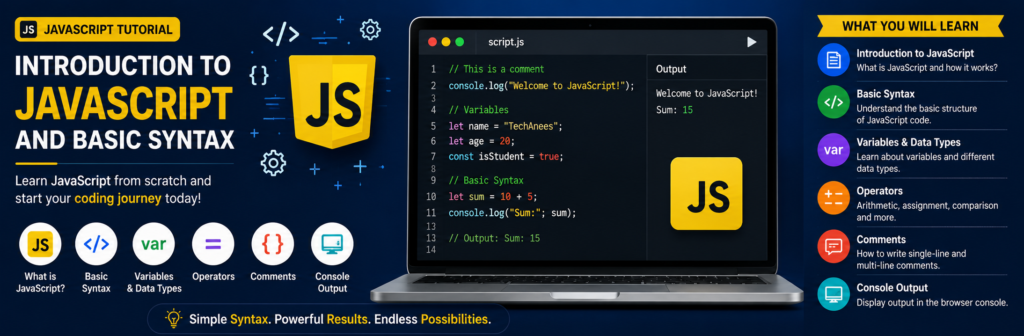
By the end of this tutorial, you will understand:
- What JavaScript is
- What JavaScript is used for
- How JavaScript works in a browser
- JavaScript and HTML
- JavaScript and CSS
- How to add JavaScript to HTML
- Inline JavaScript
- Internal JavaScript
- External JavaScript
- JavaScript statements
- JavaScript syntax
- Comments
- Case sensitivity
- Variables
letconstvar- JavaScript values
- Strings
- Numbers
- Booleans
undefinednull- Basic operators
- Arithmetic operators
- Assignment operators
- Comparison operators
- Logical operators
- JavaScript output
- The browser console
- Common beginner mistakes
- A small JavaScript project
What Is JavaScript?
JavaScript is a programming language used to add behavior and interactivity to web pages and applications.
A webpage can be thought of as having three major layers:
HTML — Structure
HTML creates the content and structure.
<h1>Welcome to TechAnees</h1>
<p>This is my website.</p>
<button>Click Me</button>
CSS — Presentation
CSS controls how that content looks.
button {
    background: blue;
    color: white;
    padding: 10px;
}
JavaScript — Behavior
JavaScript can make the page respond to the user.
alert("Welcome to TechAnees!");
A simple way to remember this is:
HTML → Structure
CSS → Design
JavaScript → Behavior
Together, these technologies allow developers to create interactive websites.
Why Should You Learn JavaScript?
JavaScript is one of the fundamental technologies of web development.
With JavaScript, you can create:
- Interactive websites
- Calculators
- Quiz applications
- To-do lists
- Image sliders
- Navigation menus
- Form validation
- Games
- Dashboards
- Web applications
- Browser-based tools
- Dynamic interfaces
JavaScript can also be used outside the browser through runtimes such as Node.js.
Modern JavaScript supports multiple programming styles and provides features for working with data, functions, objects, asynchronous operations, modules, and much more.
How Does JavaScript Work?
When you open a webpage, the browser reads the HTML and creates a representation of the document.
When JavaScript is included, the browser can execute that JavaScript and allow it to interact with the webpage.
For example:
<button onclick="sayHello()">Click Me</button>

<script>
function sayHello() {
    alert("Hello!");
}
</script>
When the user clicks the button, JavaScript executes the function and displays a message.
Later, when you learn the DOM, you will learn more flexible ways to respond to events and change webpage content.
JavaScript Is Case-Sensitive
JavaScript is case-sensitive.
This means uppercase and lowercase letters are treated differently.
For example:
let name = "Anees";
and:
let Name = "Anees";
are different variable names.
Similarly:
console.log("Hello");
is correct, while:
Console.log("Hello");
is not the same thing.
Beginner Tip
Be careful with:
- Variable names
- Function names
- Keywords
- Object properties
- Method names
A small difference in capitalization can cause an error.
How to Add JavaScript to HTML
There are three common ways to add JavaScript to a webpage.
1. Inline JavaScript
JavaScript can be written directly inside an HTML attribute.
Example:
<button onclick="alert('Hello!')">
    Click Me
</button>
This is easy for a tiny demonstration, but it is generally not the best approach for larger projects.
2. Internal JavaScript
You can write JavaScript inside a <script> element in your HTML document.
Example:
<!DOCTYPE html>
<html>
<head>
    <title>JavaScript Example</title>
</head>
<body>

<h1>Hello JavaScript</h1>

<script>
    alert("Welcome!");
</script>

</body>
</html>
The browser executes the JavaScript when it reaches the script.
3. External JavaScript
For larger websites, it is usually better to keep JavaScript in a separate .js file.
Create a file called:
script.js
Inside it:
console.log("JavaScript is working!");
Then connect it to your HTML:
<script src="script.js"></script>
External JavaScript makes your project easier to organize and allows the same script to be reused across multiple pages.
Where Should the Script Tag Go?
A script can be included in different places depending on how you want it to load.
A common modern approach is:
<script src="script.js" defer></script>
inside the <head>.
The defer attribute tells the browser to download the script while parsing the document and execute it after the document has been parsed.
For beginners, this is a useful pattern for external scripts that need to work with the page’s HTML.
Your First JavaScript Program
Let’s write your first JavaScript statement.
console.log("Hello, JavaScript!");
Open your browser’s developer tools and look at the Console.
You should see:
Hello, JavaScript!
Congratulations!
You have just executed JavaScript.
What Is JavaScript Syntax?
Syntax means the rules used to write valid JavaScript code.
Just as English has grammar rules, programming languages have syntax rules.
For example:
let name = "Anees";
contains several parts:
let→ keywordname→ variable identifier=→ assignment operator"Anees"→ string value;→ statement terminator
JavaScript syntax includes rules for statements, declarations, expressions, identifiers, operators, values, and other language constructs. JavaScript is case-sensitive and uses Unicode characters.
JavaScript Statements
A statement is an instruction that JavaScript can execute.
Example:
let name = "Anees";
Another:
console.log(name);
Another:
let age = 20;
You can write multiple statements:
let name = "Anees";
let age = 20;

console.log(name);
console.log(age);
Semicolons in JavaScript
You will often see semicolons at the end of JavaScript statements:
let name = "Anees";
let age = 20;
console.log(name);
JavaScript has automatic semicolon insertion, so semicolons are not required in every situation. However, using a consistent style can make code easier to read and can help avoid certain ambiguities.
For beginners, it is perfectly reasonable to consistently use semicolons.
JavaScript Comments
Comments are notes written in code for developers.
JavaScript ignores comments when executing the program.
There are two common types.
Single-Line Comment
Use //.
// This is a comment
let name = "Anees";
Another example:
let age = 20; // Store the user's age
Multi-Line Comment
Use /* */.
/*
This is a
multi-line comment.
*/

let name = "Anees";
Comments are useful for explaining code and temporarily disabling code while testing.
What Are Variables?
A variable is a named storage location used to hold a value.
Think of a variable like a labeled box.
You give the box a name and put a value inside it.
For example:
let name = "Anees";
Here:
name is the variable.
“Anees” is its value.
You can later use that variable:
console.log(name);
The console will display:
Anees
Declaring Variables
Modern JavaScript primarily uses:
letconst
You may also encounter:
var
Let’s understand them.
The let Keyword
Use let when you expect the variable’s value to change.
Example:
let age = 20;

age = 21;
The value has changed from 20 to 21.
Another example:
let score = 10;

score = 25;

console.log(score);
Output:
25
The const Keyword
Use const when the variable binding should not be reassigned.
Example:
const country = "Pakistan";
You cannot later do:
country = "India";
That produces an error because the const binding cannot be reassigned.
Beginner Rule
Use:
const by default
and use:
let when you know the value needs to be reassigned.
What About var?
Older JavaScript code commonly uses var:
var name = "Anees";
var is still part of JavaScript, but modern code generally prefers let and const because their scoping behavior is easier to reason about.
You should learn var so you can understand older code, but when writing new beginner projects, focus on let and const.
Variable Naming Rules
Variable names must follow JavaScript’s identifier rules.
Good examples:
let name;
let age;
let firstName;
let userScore;
let totalPrice;
You cannot use spaces:
let first name;
This is invalid.
Use camelCase instead:
let firstName;
Variable names are also case-sensitive:
let age = 20;
let Age = 30;
These are different variables.
Avoid Reserved Words
JavaScript has keywords that have special meaning.
For example:
let
const
if
else
function
return
class
You should not use these as ordinary variable names.
JavaScript Values
A variable stores a value.
For example:
let name = "Anees";
The value is a string.
Another:
let age = 20;
The value is a number.
Another:
let isStudent = true;
The value is a Boolean.
JavaScript has several built-in data types. The current ECMAScript language specification includes seven primitive types—Boolean, null, undefined, Number, BigInt, String, and Symbol—and the Object type.
JavaScript Data Types
Let’s learn the most important types for beginners.
1. String
A string represents text.
You can write strings using single quotes:
let name = 'Anees';
Double quotes:
let name = "Anees";
Or template literals:
let name = `Anees`;
All three are useful, although template literals provide additional features for inserting expressions into strings.
String Examples
let firstName = "Anees";
let website = "TechAnees";
let message = "Welcome to JavaScript!";
You can combine strings:
let firstName = "Anees";
let lastName = "Abro";

let fullName = firstName + " " + lastName;

console.log(fullName);
Output:
Anees Abro
Template Literals
Template literals use backticks:
let name = "Anees";
let age = 20;

let message = `My name is ${name} and I am ${age} years old.`;

console.log(message);
Output:
My name is Anees and I am 20 years old.
Template literals are especially useful when building dynamic text.
2. Number
JavaScript uses the Number type for ordinary numeric values.
Examples:
let age = 20;
let price = 99.99;
let temperature = -5;
You can perform calculations:
let a = 10;
let b = 5;

console.log(a + b);
Output:
15
JavaScript also has BigInt for integers outside the range safely represented by ordinary Number values.
3. Boolean
A Boolean has only two values:
true
or:
false
Example:
let isLoggedIn = true;
let isAdmin = false;
Booleans are extremely important when writing conditions.
For example:
let age = 20;

console.log(age >= 18);
The result is:
true
4. Undefined
A variable can exist without having a value assigned to it.
Example:
let username;

console.log(username);
The result is:
undefined
undefined is a distinct JavaScript value.
5. Null
null is commonly used to represent an intentional absence of a value.
Example:
let selectedUser = null;
This means that the variable currently has no selected user value.
null and undefined are different values, even though both can represent an absence of a useful value.
Checking Data Types
You can use typeof to inspect the type of many values.
Example:
let name = "Anees";

console.log(typeof name);
Output:
string
Another:
let age = 20;

console.log(typeof age);
Output:
number
Another:
let isStudent = true;

console.log(typeof isStudent);
Output:
boolean
JavaScript Operators
Operators allow you to perform operations on values.
Some important categories are:
- Arithmetic operators
- Assignment operators
- Comparison operators
- Logical operators
Arithmetic Operators
Arithmetic operators perform mathematical calculations.
| Operator | Meaning | Example |
|---|---|---|
+ | Addition | 10 + 5 |
- | Subtraction | 10 - 5 |
* | Multiplication | 10 * 5 |
/ | Division | 10 / 5 |
% | Remainder | 10 % 3 |
** | Exponentiation | 2 ** 3 |
Example:
let a = 10;
let b = 3;

console.log(a + b);
console.log(a - b);
console.log(a * b);
console.log(a / b);
console.log(a % b);
Assignment Operators
The basic assignment operator is:
=
Example:
let score = 10;
There are also compound assignment operators:
score += 5;
This is equivalent to:
score = score + 5;
Other examples:
score -= 2;
score *= 3;
score /= 2;
Comparison Operators
Comparison operators compare values and produce a Boolean result.
Common operators include:
| Operator | Meaning |
|---|---|
=== | Strict equality |
!== | Strict inequality |
> | Greater than |
< | Less than |
>= | Greater than or equal |
<= | Less than or equal |
Example:
let age = 20;

console.log(age >= 18);
Result:
true
== vs ===
Beginners often get confused by these operators.
Loose equality
5 == "5"
This can return:
true
because == performs type conversion.
Strict equality
5 === "5"
This returns:
false
because the values have different types.
For modern JavaScript code, === and !== are generally preferred when you want predictable strict comparisons.
Logical Operators
Logical operators allow you to combine or invert conditions.
AND — &&
age >= 18 && isStudent === true
Both conditions must be true for the whole expression to be true.
OR — ||
isAdmin || isEditor
At least one condition must be true.
NOT — !
!isLoggedIn
This reverses a Boolean value.
JavaScript Output
There are several ways JavaScript can display or use information.
For beginners, the most useful are:
console.log()- Changing HTML through the DOM
alert()
Using console.log()
console.log("Hello World!");
You can also display variables:
let name = "Anees";

console.log(name);
Or calculations:
console.log(10 + 20);
Output:
30
console.log() is especially useful while learning and debugging.
Using alert()
You can display a browser dialog:
alert("Welcome to TechAnees!");
The browser will show a popup message.
However, avoid using alert() as your primary way of building modern interfaces. It is useful for learning and simple demonstrations, but real applications generally use HTML elements and the DOM for user-facing messages.
Using the DOM to Display Information
JavaScript can also change webpage content.
HTML:
<h2 id="message">Old Message</h2>
JavaScript:
document.getElementById("message").textContent = "New Message";
The text on the page changes.
This is an introduction to DOM manipulation, which deserves its own detailed tutorial.
How to Open the Browser Console
The browser console is one of the most important tools for learning JavaScript.
In Chrome:
- Open your webpage.
- Press F12, or use Ctrl + Shift + I.
- Open the Console tab.
- Type:
console.log("Hello JavaScript!");
- Press Enter.
You should see the result.
The console is useful for:
- Testing JavaScript
- Checking values
- Finding errors
- Debugging programs
- Experimenting with syntax
A Small JavaScript Example
Let’s create a small program.
const name = "Anees";
let age = 20;

console.log("Name:", name);
console.log("Age:", age);

age = age + 1;

console.log("Next year:", age);
The program:
- Creates a constant called
name. - Creates a variable called
age. - Displays both values.
- Increases the age by one.
- Displays the updated value.
Create Your First JavaScript Webpage
Let’s combine HTML and JavaScript.
Create a file named:
index.html
Add:
<!DOCTYPE html>
<html lang="en">
<head>
    <meta charset="UTF-8">
    <meta name="viewport" content="width=device-width, initial-scale=1.0">
    <title>My First JavaScript Page</title>
</head>
<body>

    <h1 id="title">Hello!</h1>

    <button id="changeButton">Click Me</button>

    <script>
        const button = document.getElementById("changeButton");
        const title = document.getElementById("title");

        button.addEventListener("click", function () {
            title.textContent = "JavaScript is working!";
        });
    </script>

</body>
</html>
Open the file in your browser.
Click the button.
The heading will change.
You have just created an interactive webpage using JavaScript.
Live Code Example:
<!DOCTYPE html>
<html lang="en">
<head>
    <meta charset="UTF-8">
    <meta name="viewport" content="width=device-width, initial-scale=1.0">
    <title>My First JavaScript Page</title>
</head>
<body>

    <h1 id="title">Hello!</h1>

    <button id="changeButton">Click Me</button>

    <script>
        const button = document.getElementById("changeButton");
        const title = document.getElementById("title");

        button.addEventListener("click", function () {
            title.textContent = "JavaScript is working!";
        });
    </script>

</body>
</html>Hello!
Common JavaScript Beginner Mistakes
Mistake 1: Forgetting Quotes Around Strings
Incorrect:
let name = Anees;
Correct:
let name = "Anees";
Mistake 2: Incorrect Capitalization
Incorrect:
Console.log("Hello");
Correct:
console.log("Hello");
JavaScript is case-sensitive.
Mistake 3: Using const and Then Reassigning It
Incorrect:
const age = 20;

age = 21;
If the value needs to be reassigned, use let:
let age = 20;

age = 21;
Mistake 4: Confusing = and ===
= assigns a value:
let age = 20;
=== compares values strictly:
age === 20
They perform completely different jobs.
Mistake 5: Using var Everywhere
Older tutorials often teach:
var name = "Anees";
For new code, prefer:
const name = "Anees";
or:
let name = "Anees";
when reassignment is required.
JavaScript Beginner Cheat Sheet
| Concept | Example |
|---|---|
| Variable | let age = 20; |
| Constant | const name = "Anees"; |
| String | "Hello" |
| Number | 25 |
| Boolean | true |
| Null | null |
| Undefined | undefined |
| Addition | 10 + 5 |
| Assignment | x = 10 |
| Strict equality | x === 10 |
| AND | x > 5 && y > 5 |
| OR | `x > 5 |
| NOT | !isReady |
| Console | console.log() |
| Comment | // comment |
| External script | <script src="script.js"></script> |
Frequently Asked Questions
Is JavaScript difficult for beginners?
JavaScript can seem difficult at first because it introduces programming concepts such as variables, conditions, functions, loops, objects, and events.
However, learning one concept at a time makes the language much easier to understand.
Do I need HTML and CSS before JavaScript?
It is strongly recommended to understand basic HTML and CSS first if your goal is web development.
HTML gives you the structure, CSS controls presentation, and JavaScript adds behavior.
Is JavaScript the same as Java?
No.
JavaScript and Java are different programming languages. Despite the similar names, they have different designs, ecosystems, and typical uses.
What is the difference between JavaScript and ECMAScript?
ECMAScript is the language specification that defines JavaScript’s core language features.
JavaScript is an implementation of the ECMAScript standard along with additional host APIs provided by environments such as browsers.
Should I learn var, let, or const?
Learn all three so that you can understand existing JavaScript code, but for modern code, start with const and let.
Use const when you don’t need to reassign the variable and let when you do.
Where can I practice JavaScript?
You can practice JavaScript directly in your browser’s developer console or create an HTML file containing JavaScript.
Start with very small programs and gradually build projects.

About Techanees
Techanees is a technology platform sharing simple tutorials, useful guides, web development tips, and the latest tech updates for beginners and enthusiasts.